Human Case Surveillance
Adding an AFP Case
To create an AFP case, use the main menu in the app to access the AFP Cases and Contacts link.

Required fields
Identification section
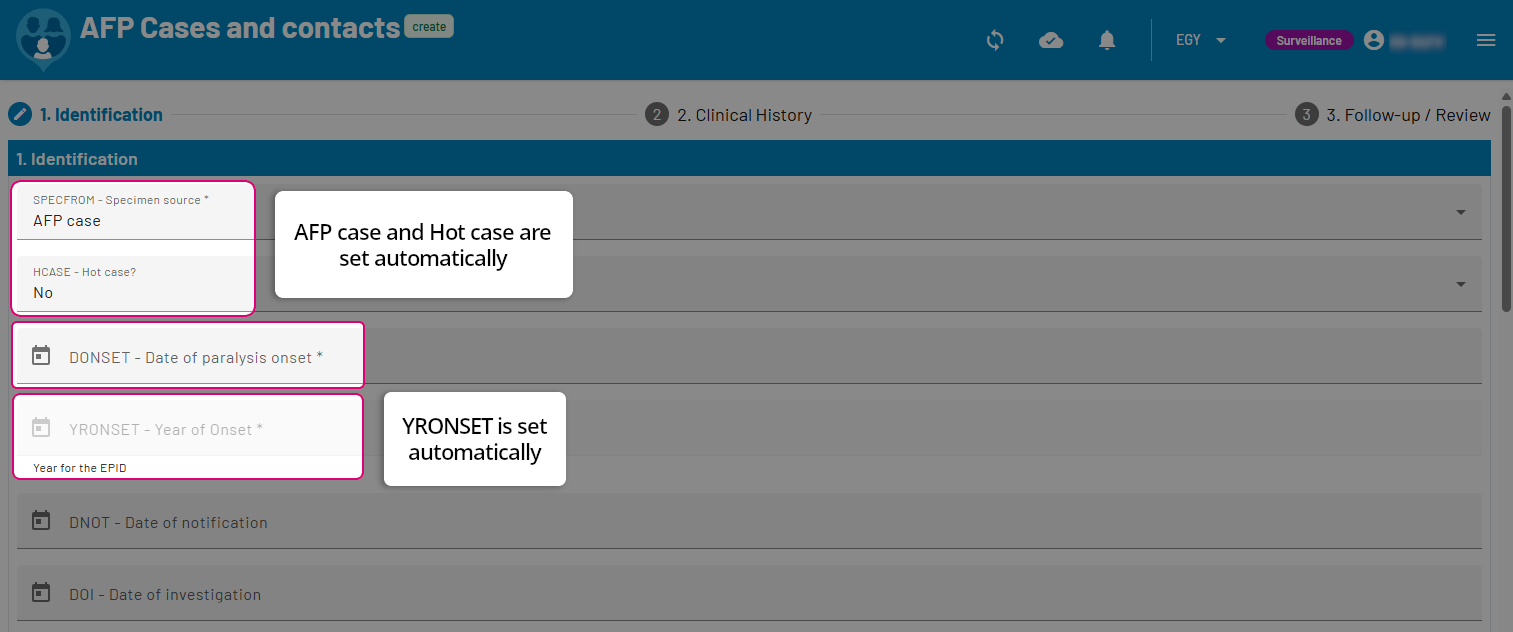
Field name |
Possible values |
|---|---|
SPECFROM - Specimen source |
AFP case, Contact, Excluded AFP, Healthy Children |
DONSET - Date of paralysis onset |
Input Date field |
YRONSET - Year of Onset calculated field |
Date field - automatic value according to SPECFROM, AREA, YRONSET and SERIALD |
Area section
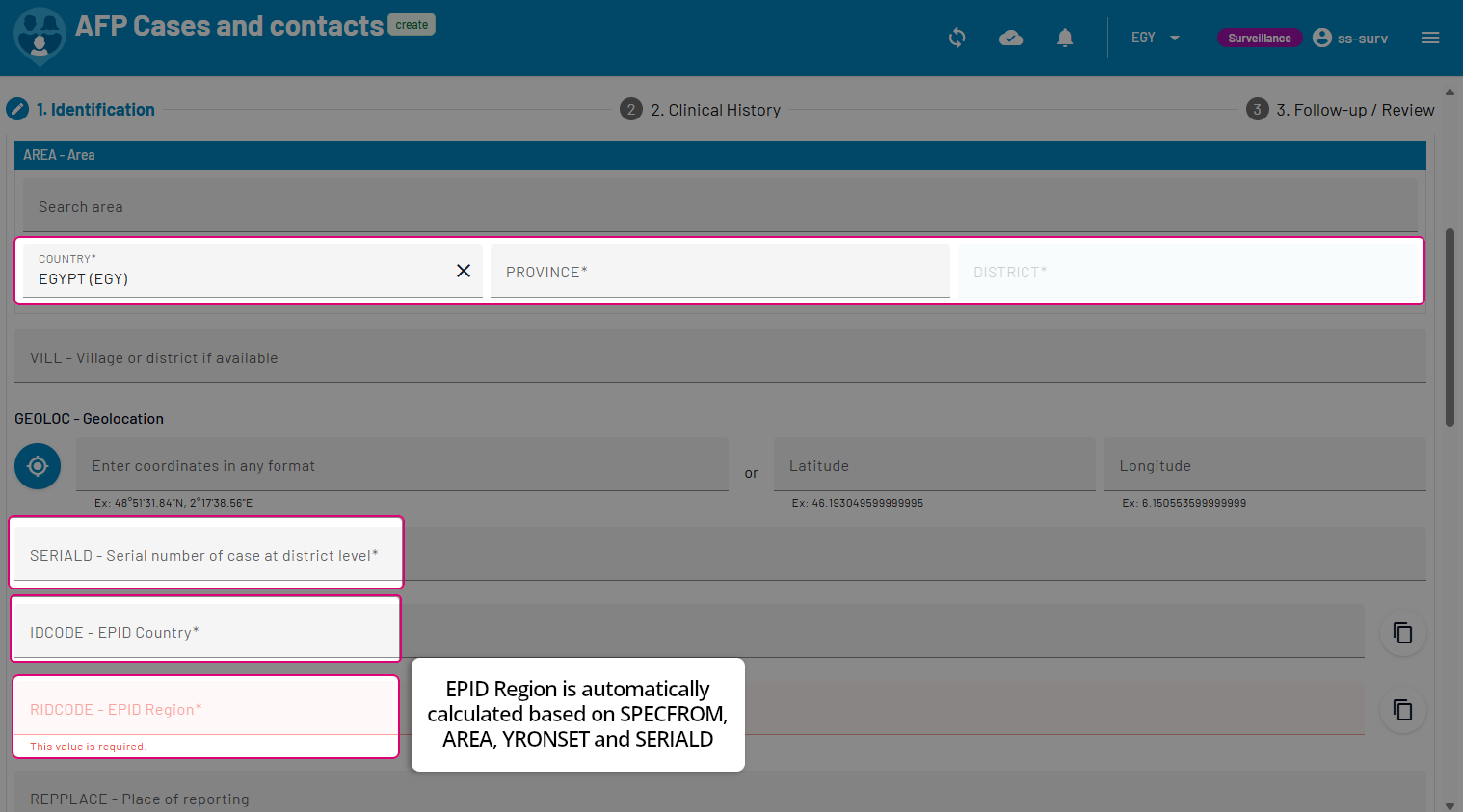
Field name |
Possible values |
|---|---|
Country |
Value selector |
Province |
Value selector |
District |
Value selector |
SERIALD - Serial number of case at district level |
Input text field |
IDCODE - EPID Country |
Input text field |
RIDCODE - EPID Region calculated field |
Input text field - automatic value based on SPECFROM, AREA, YRONSET and SERIALD |
Identification of patient section
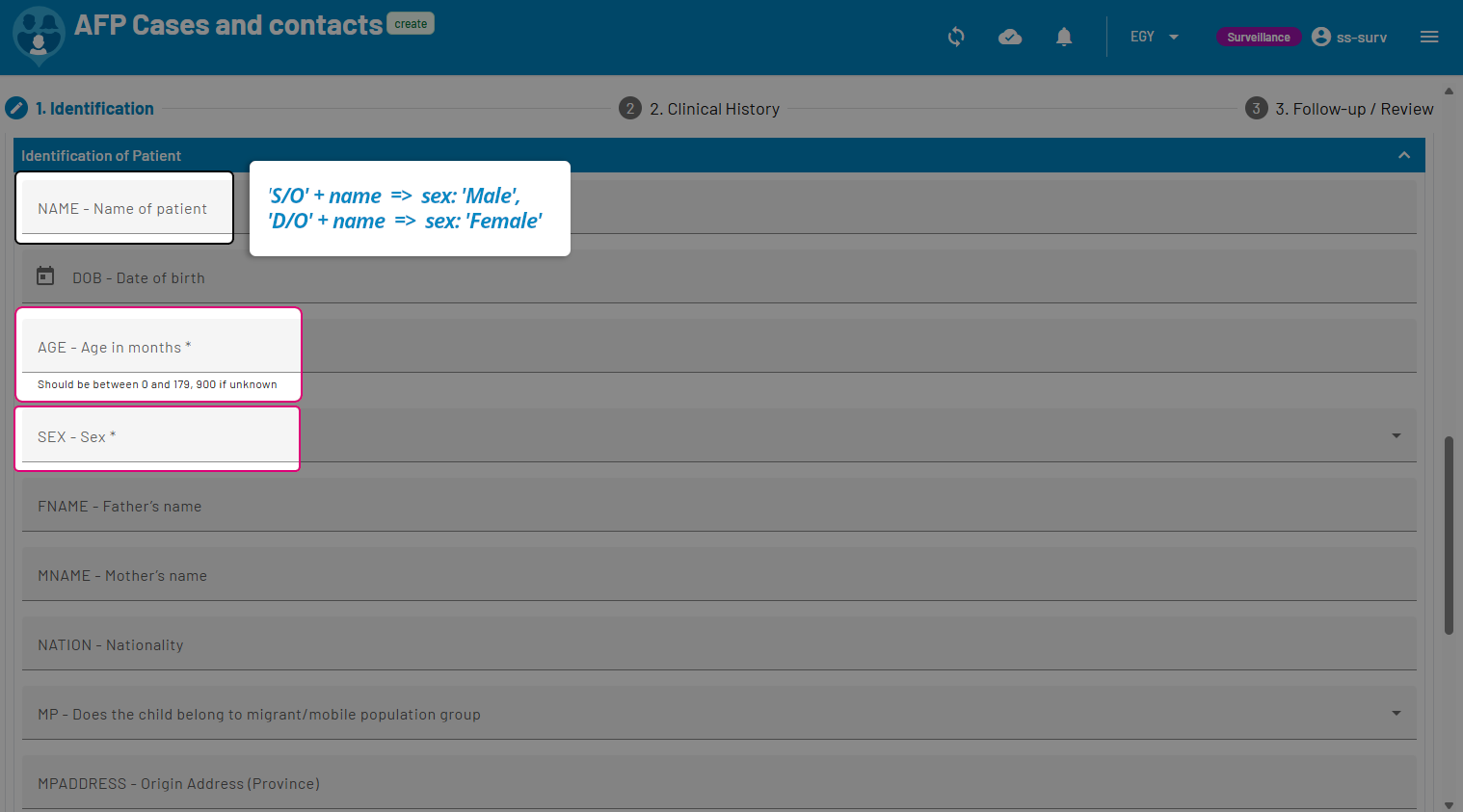
Field name |
Possible values |
|---|---|
AGE - Age in months |
Number between 0 and 179 - 900 = unknown |
SEX - Patent’s sex (optionally calculated field) |
Input text field - automatic value according to NAME |
All other fields are not required.
Saving the case
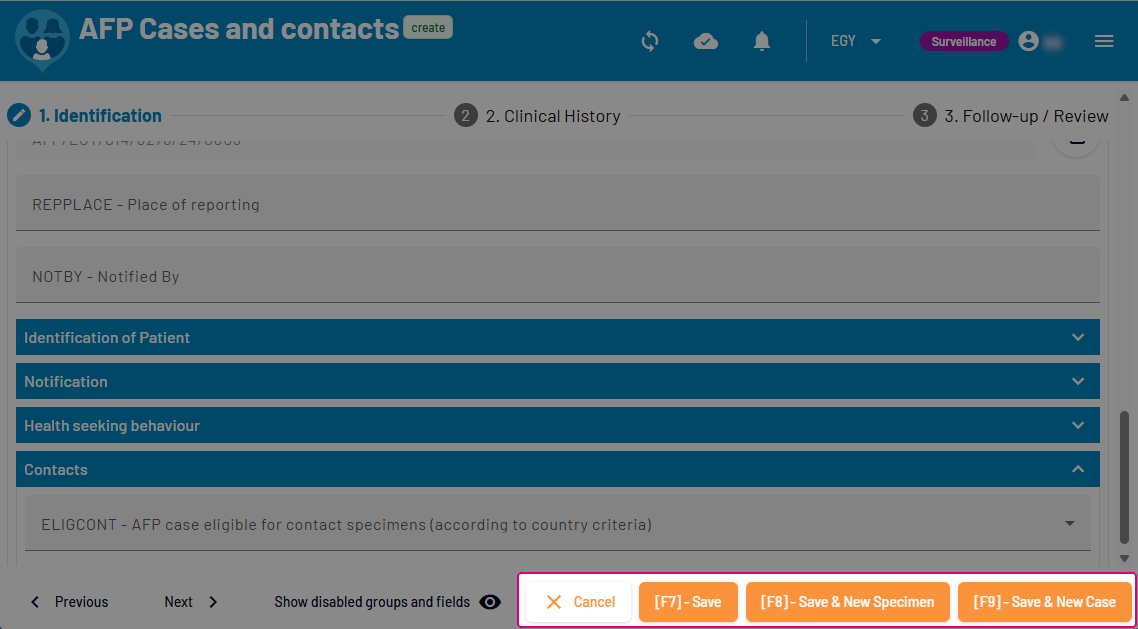
Once you have filled in the minimum required fields. you may save the case by clicking on one of the following:
In case of errors, WebIFA prevents saving the case and provides a list of the incorrect fields and associated errors.
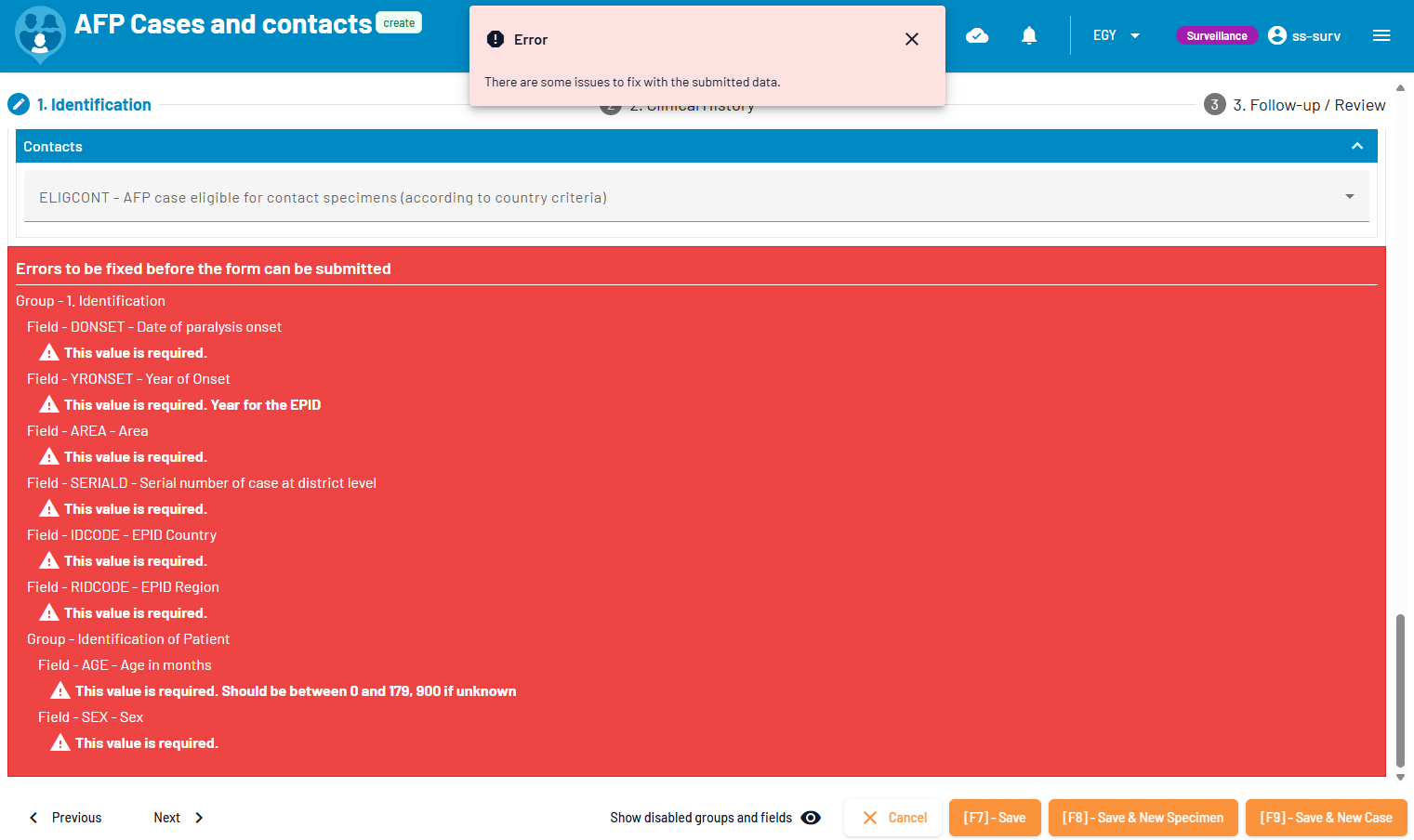
It is required to fix these errors to proceed and create the new case.
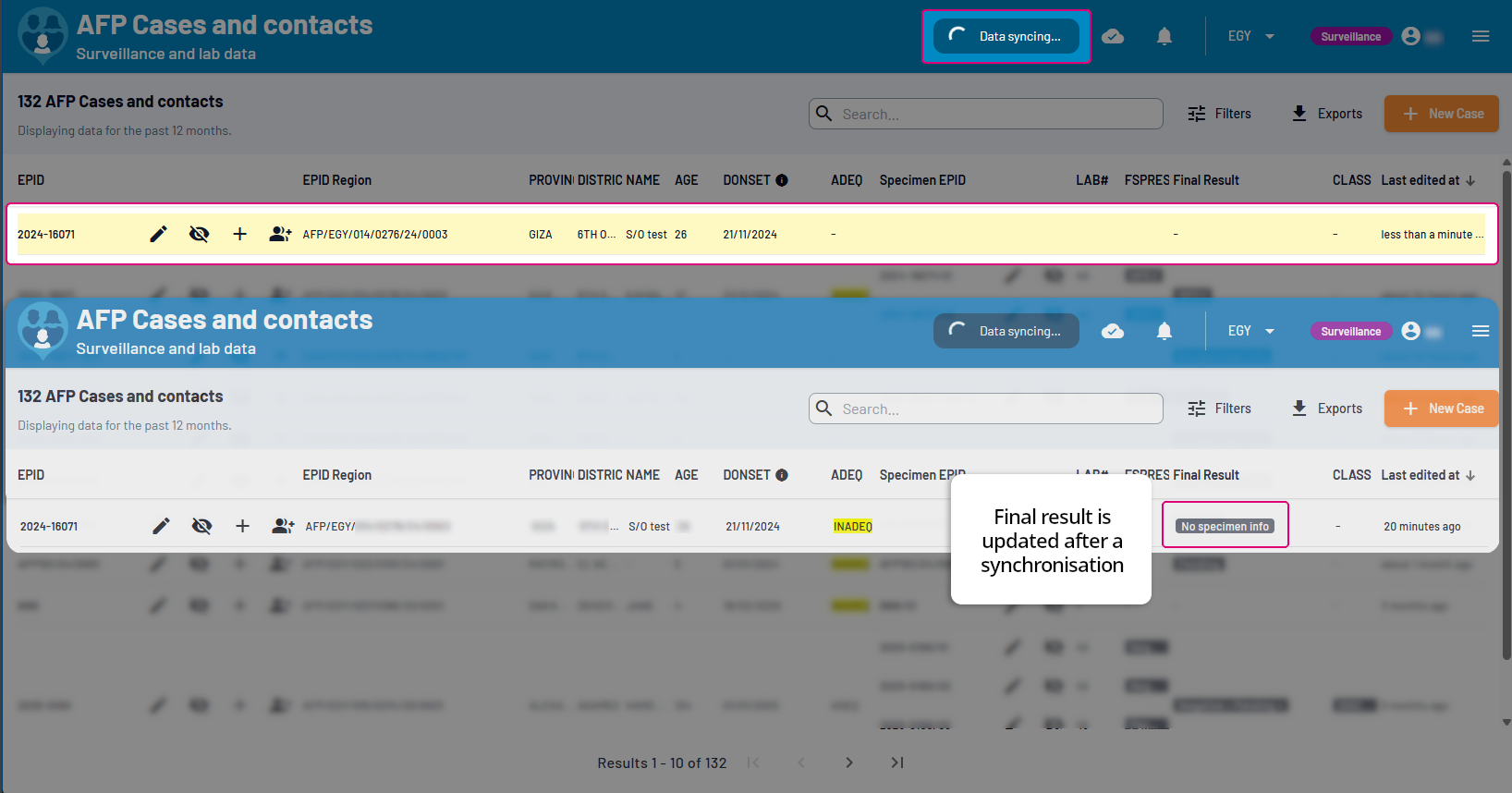
New case’s view
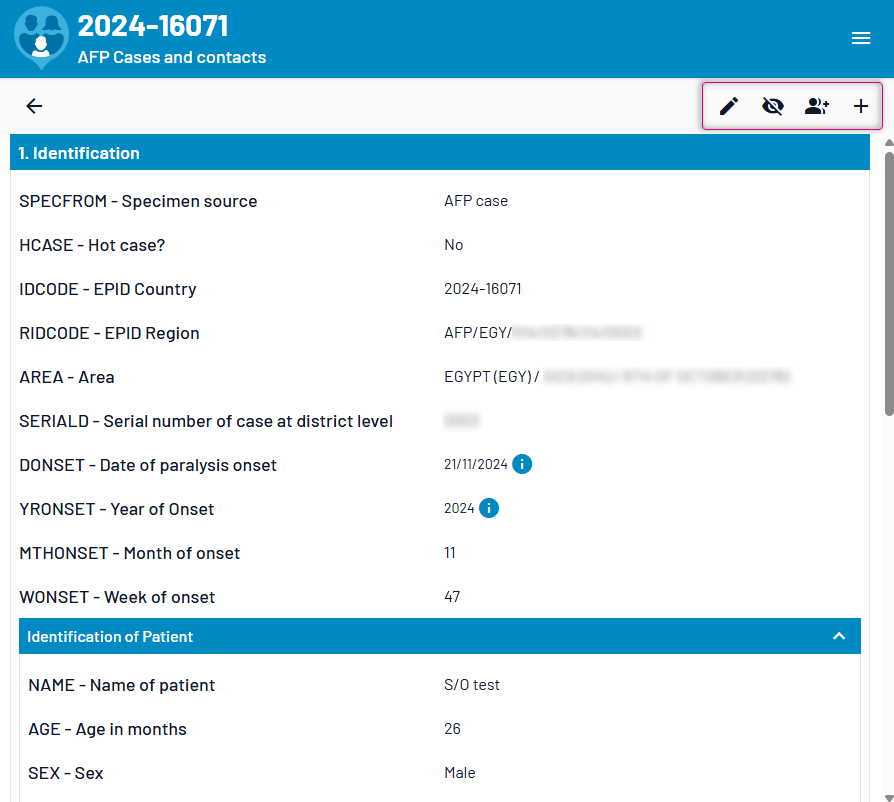
Note
It is possible to edit or unpublish a case from the case’s view. It is also possible to add a contact or add a specimen. Case and contact Actions
Adding a new Specimen
A specimen may be created from the AFP and Contacts page by using the linelist action buttons or from the case’s view directly. Case and contact Actions
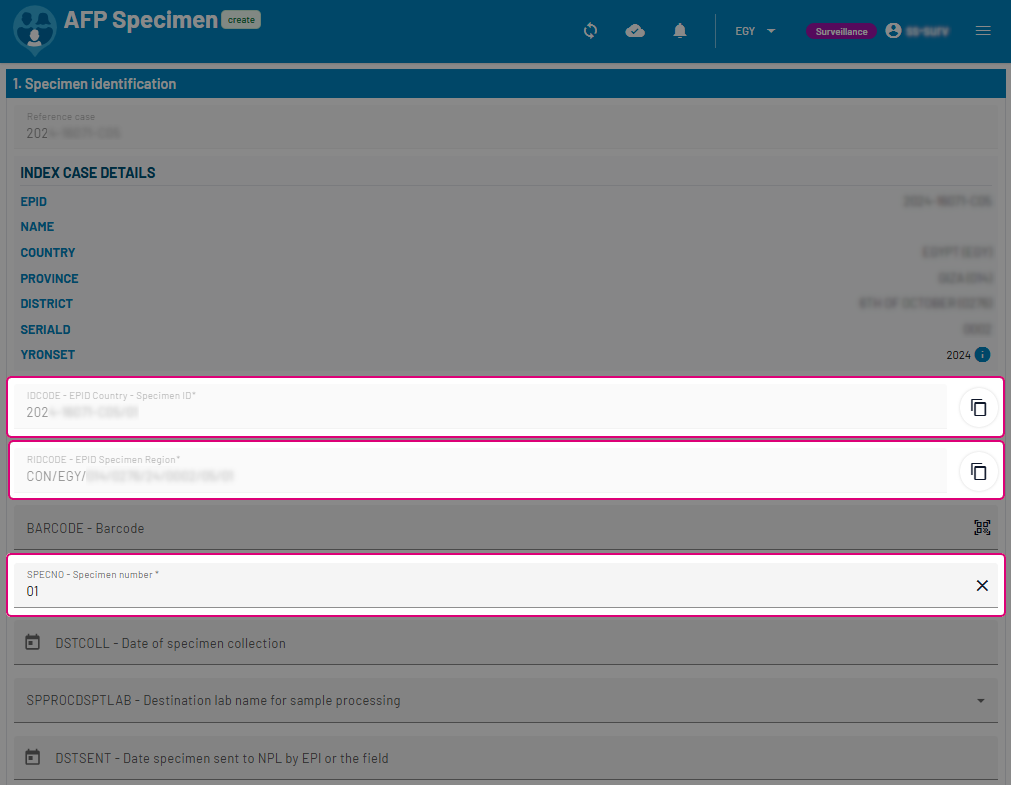
Identification section
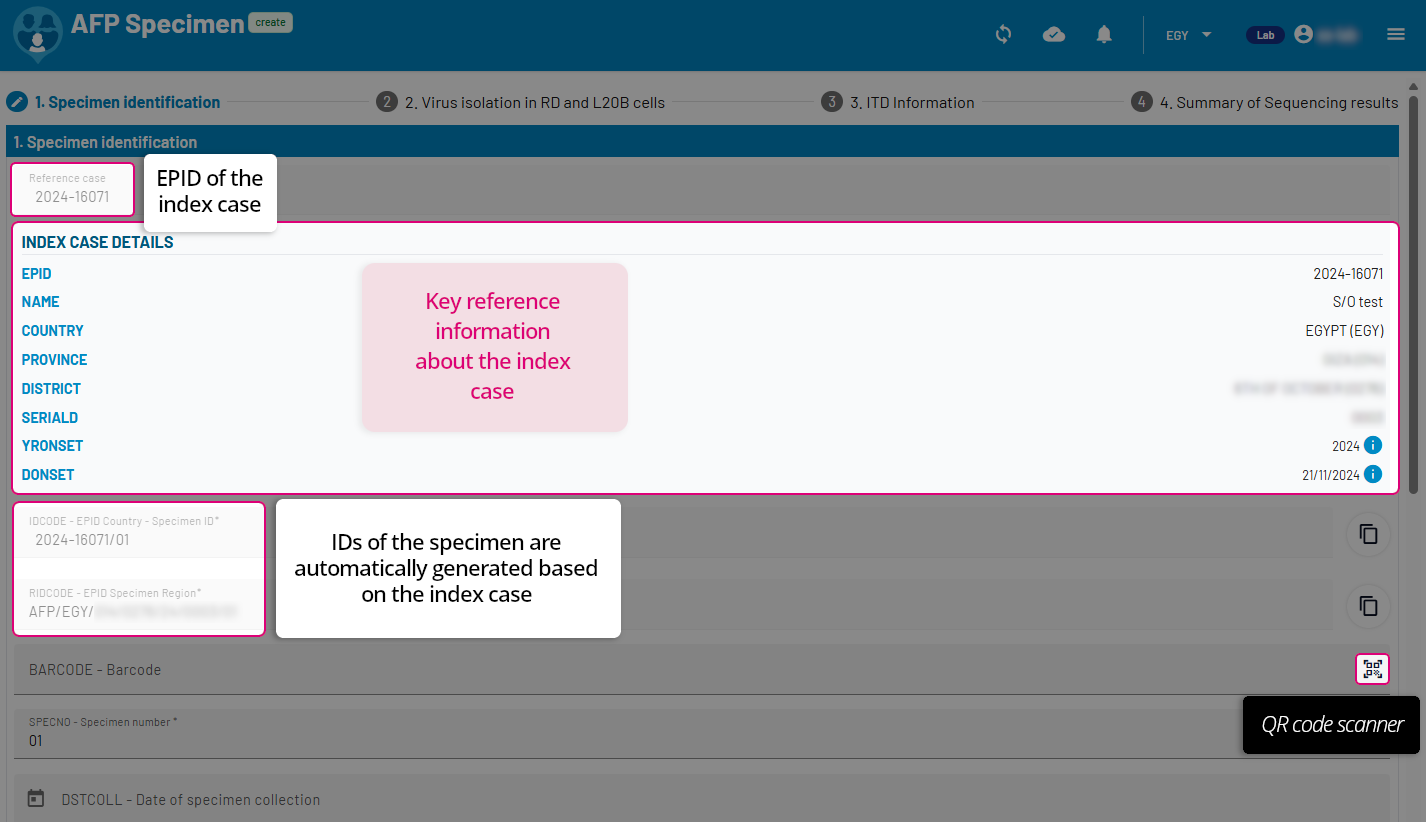
Field name |
Possible values |
|---|---|
Reference case |
non editable |
IDCODE - EPID Country calculated field |
non editable - [Reference case] + [SPECNO] |
RIDCODE - EPID Region calculated field |
non editable - generated from EPID + SPECNO |
SPECNO - Specimen number calculated field |
Default value provided |
Receipt of specimen in this laboratory section
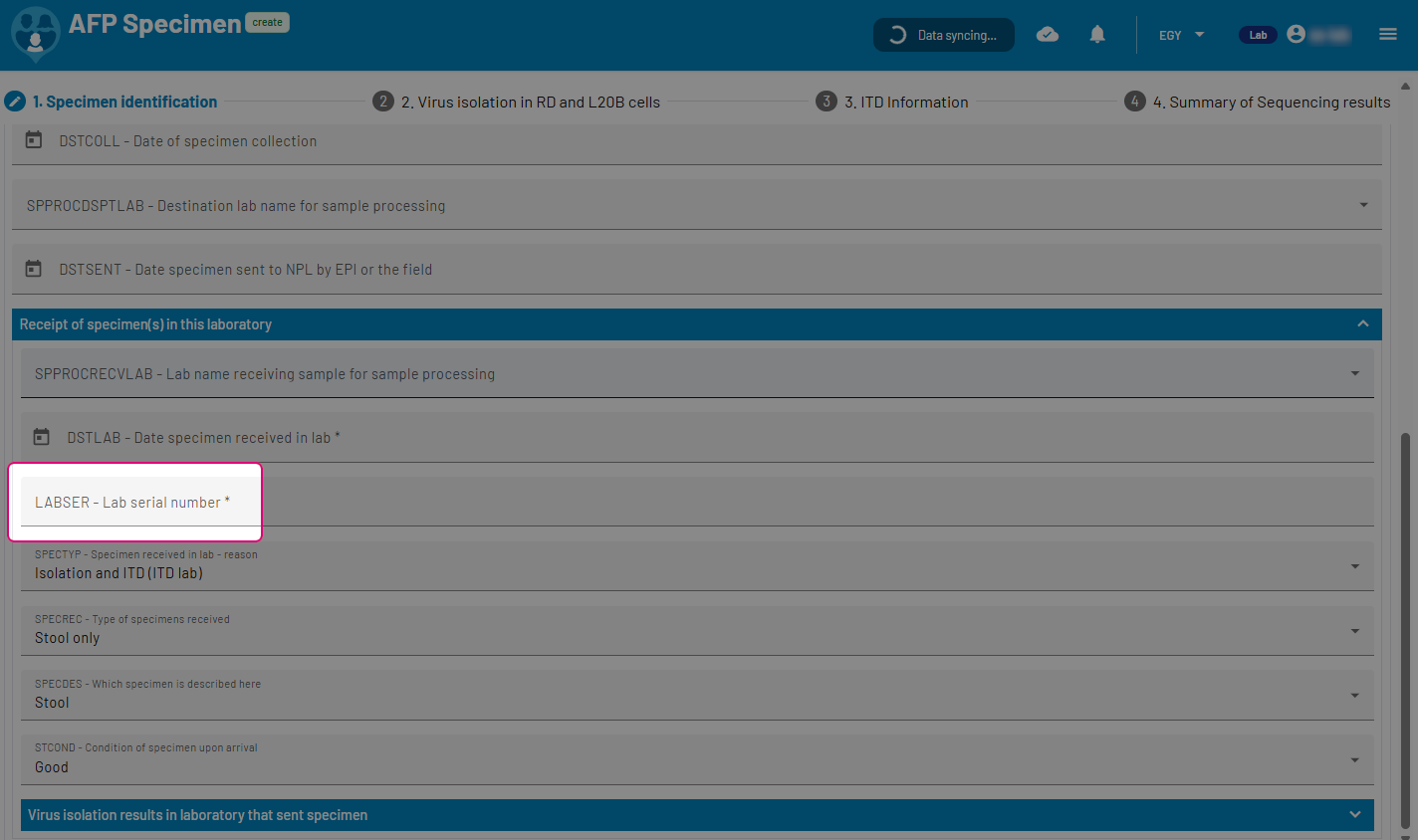
Field name |
Possible values |
|---|---|
LABSER - Lab serial number |
Input field |
Saving the specimen
Once you are ready to save the case, you will be ready to click one of the following:
In case of entries validation errors, WebIFA provides a list of the incorrect fields and associated errors.
It is required to fix these errors to proceed and create the new case.
Note
It is possible to access case’s options from the case’s view as in the results table
Adding a new Contact
To create a new specimen, use the main menu in the app to access the AFP Cases and Contacts page
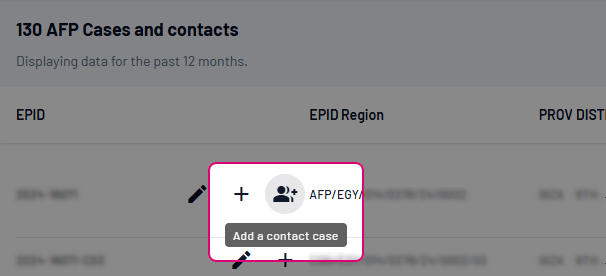
New contact required fields
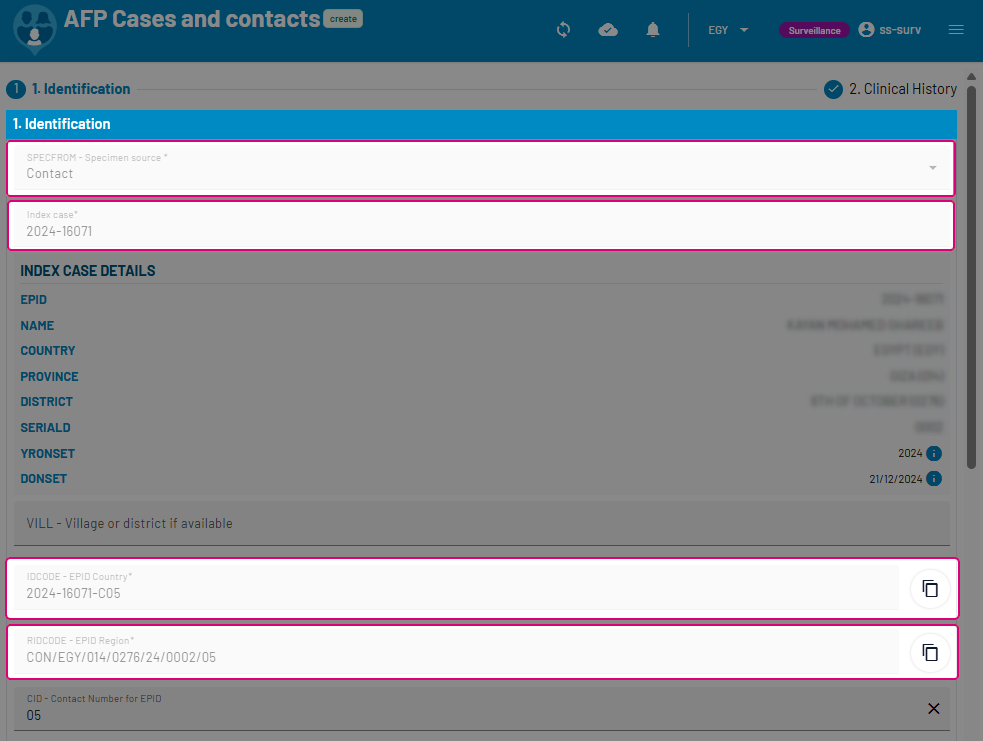
Field name |
Possible values |
|---|---|
SPECFROM - Specimen source |
non editable |
Index case |
non editable |
IDCODE - EPID Country |
non editable |
RIDCODE - EPID Region |
non editable |
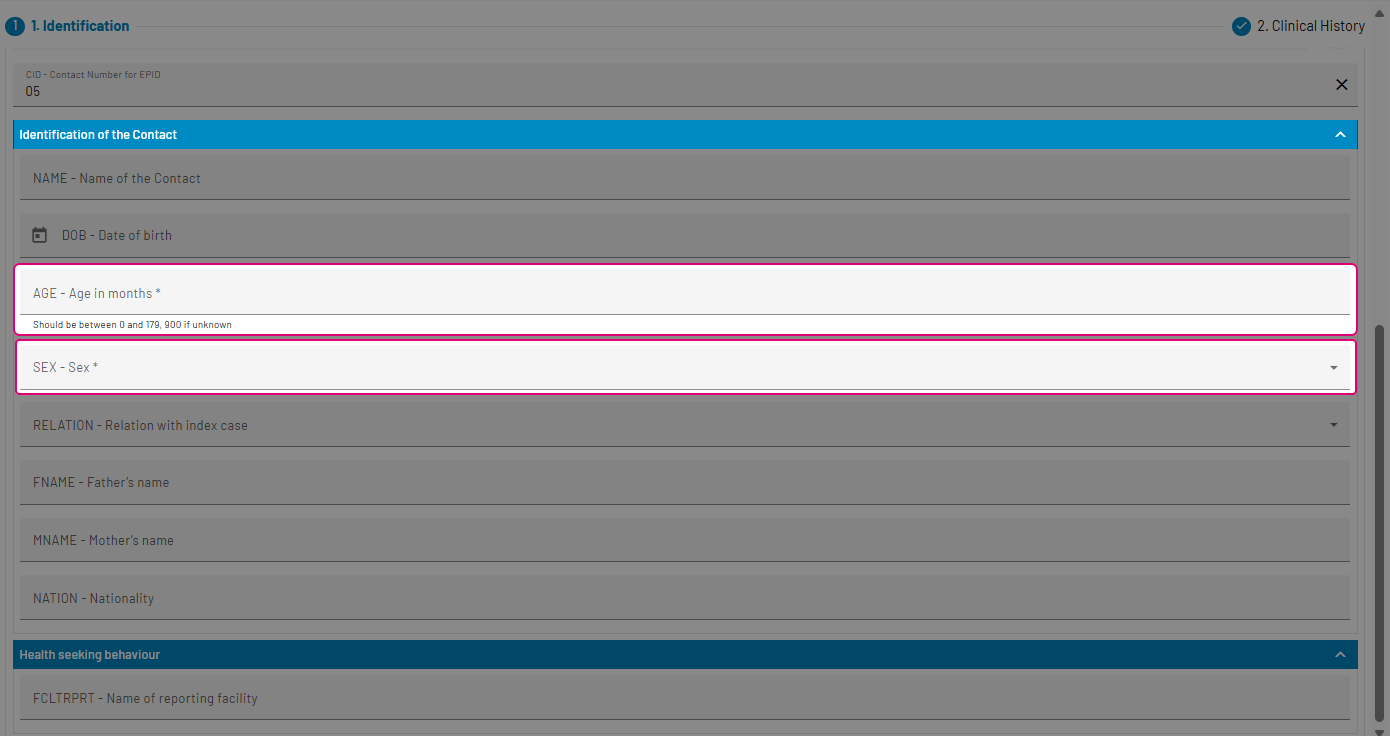
Field name |
Possible values |
|---|---|
Age |
Input number field - value should be set between 0 and 179 (900 if unknown) |
Sex |
Possible values |