Navigating the interface
Main screen
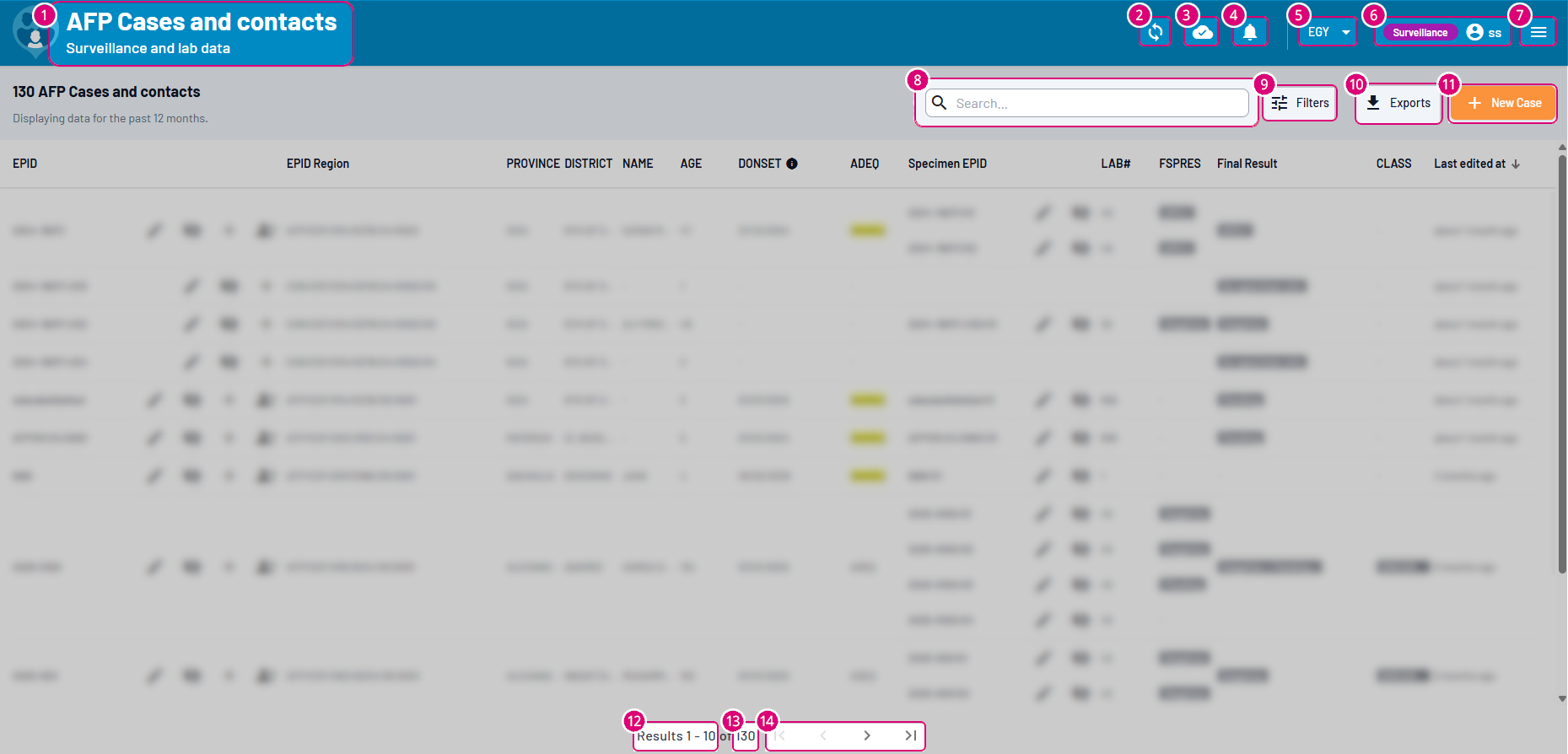
Screen preview / top navigation features
Secondary navigation features

8
Search data across results fields
|
9
Open the advanced search panel
|
10
CSV exports button
|
11
Open the AFP Case form
|
Navigating the results
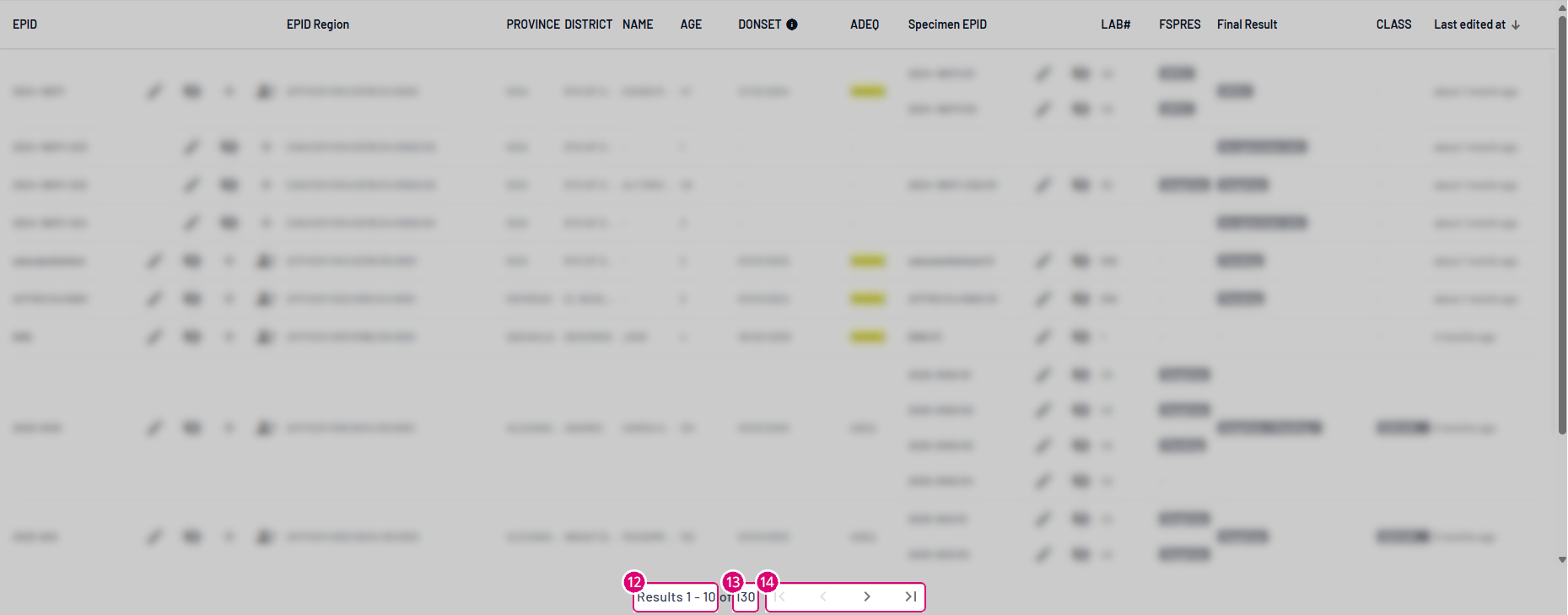
12Shows the current pagination |
13Gives the total number of records |
14Buttons to navigate through results |
Environmental Surveillance screen
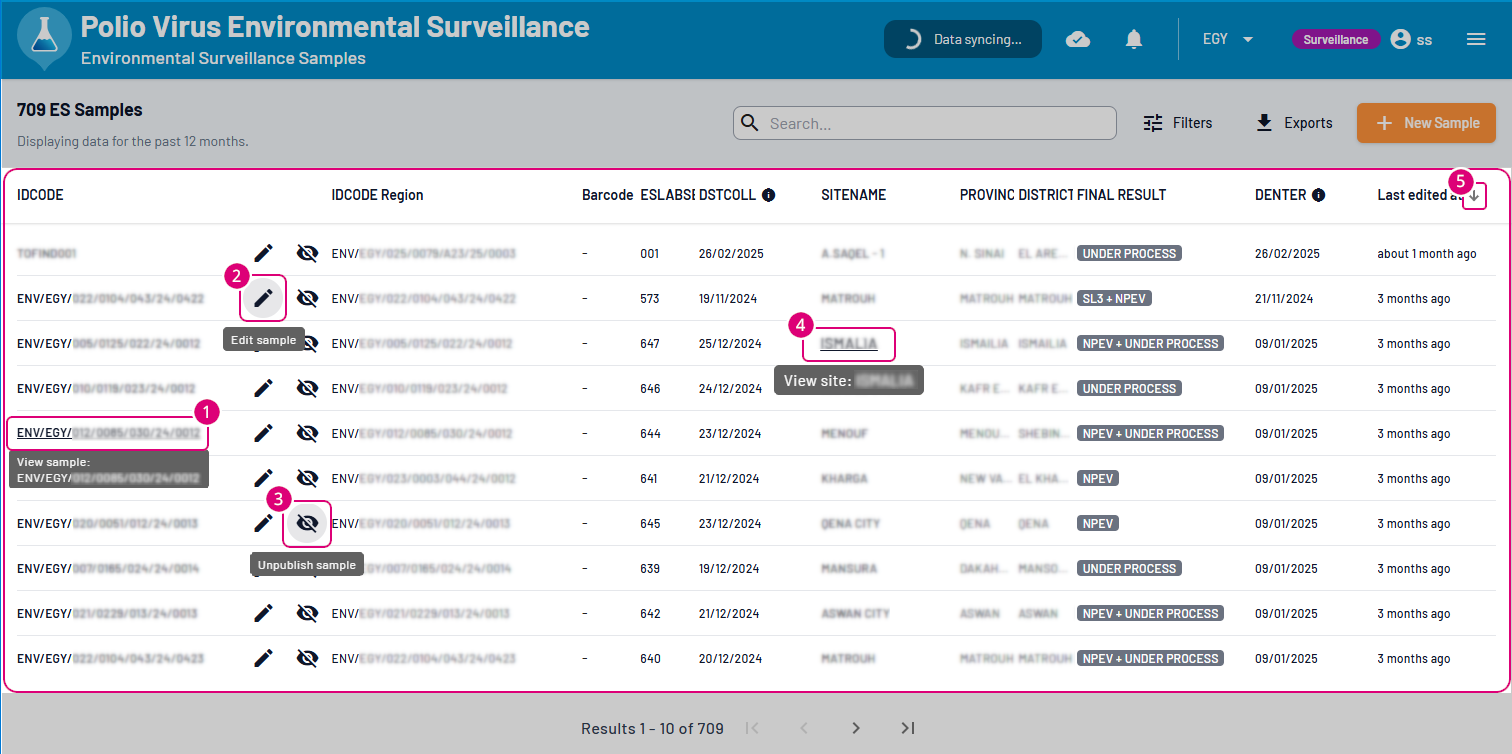
1
Click samples codes to view sample's details
|
2
Click pencil to Edit sample
3
Click eye to Publish/Unpublish sample
|
4
Click samples names to view sample's details
|
5
Sort column by clicking its title
|
AFP Cases screen
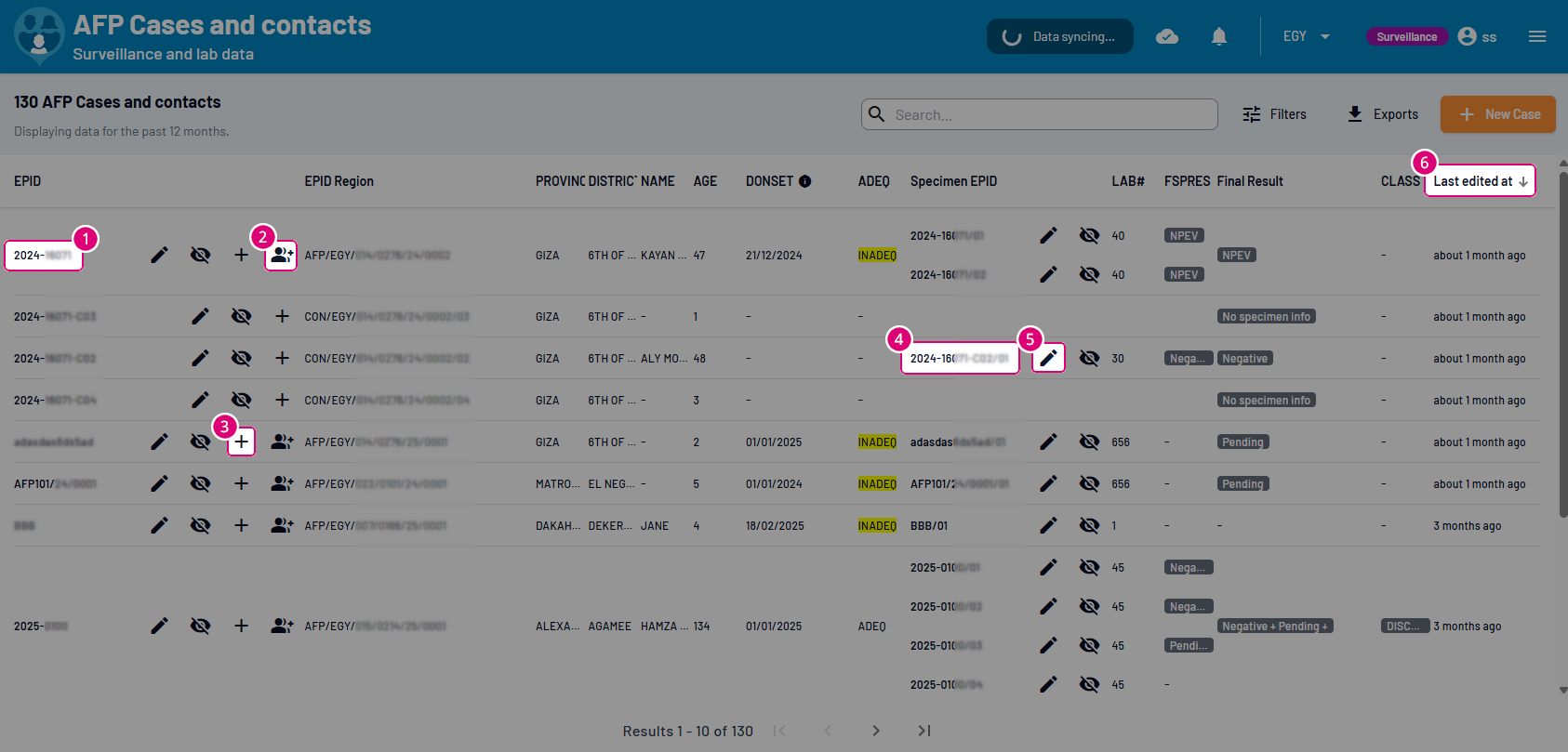
1
Click cases EPID to view cases details
|
2
Click icon to add a contact
3
Click plus sign to add a specimen to the contact
|
4
Click specimen EPID to view specimens details
5
Click pencil to edit a specimen
|
6
Sort column by clicking its title
|
Menus
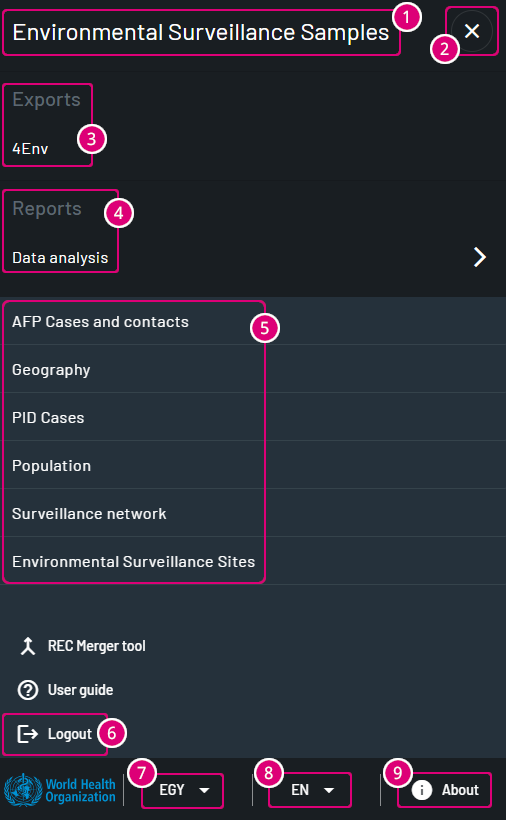
Environmental Surveillance menu
|
1
Section title
2
Click to close the panel
3
Export data
4
Access Reports∗
5
Other available WebIFA sections
6
Log out
7
Switch between available countries
8
Change app language
9
App infos
|
∗ ES Reports Navigation |
||
|
→ |

|
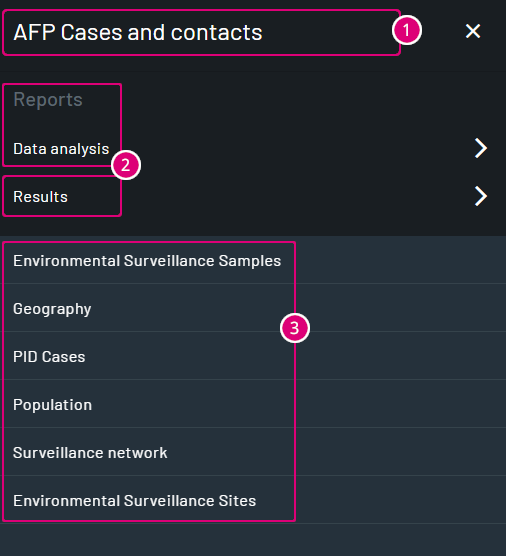
AFP Cases and Contacts menu
|
1
Section title
2
Access Reports∗
3
Other available WebIFA sections
|
∗ AFP Cases Reports Navigation |
||||
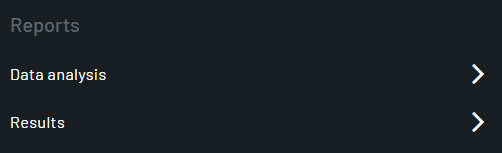
|
→ |
|
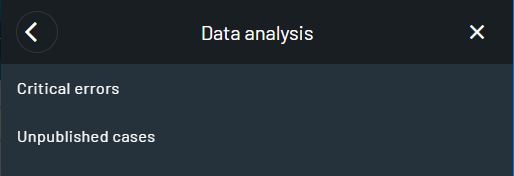
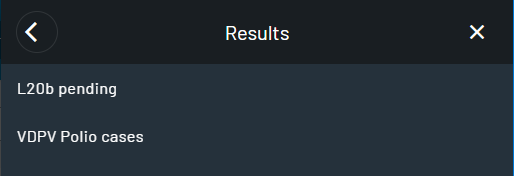
Data entry form
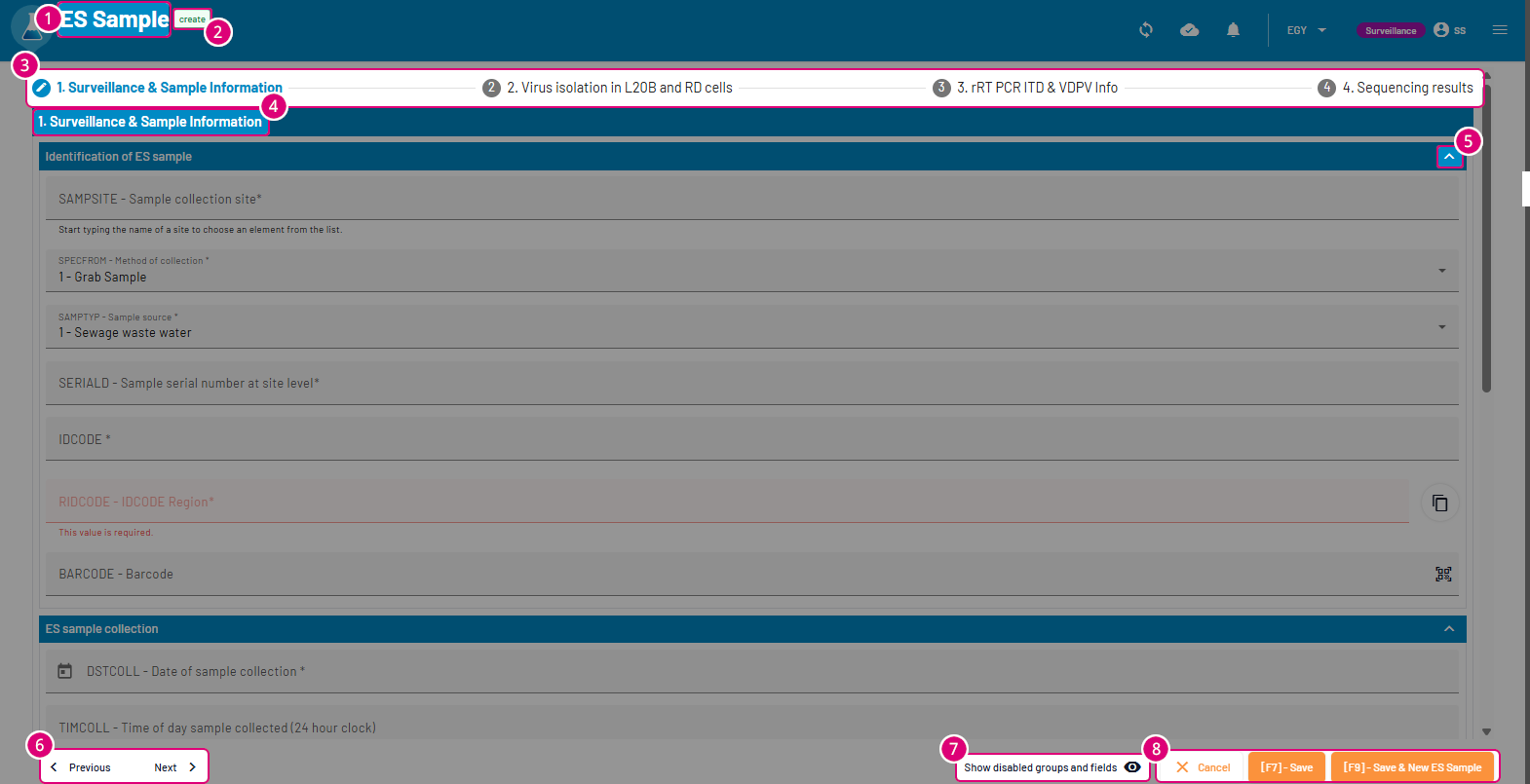
1
Title of the data entry form
2
Ongoing action
3
Navigation bar - each section is clickable
4
! Main section can't be collapsed
|
5
Shows section expanded/collapsed state
6
Form sections navigation buttons
7
Click to show/hide fields and groups
8
Form actions buttons (cancel / save / save & create new)
|
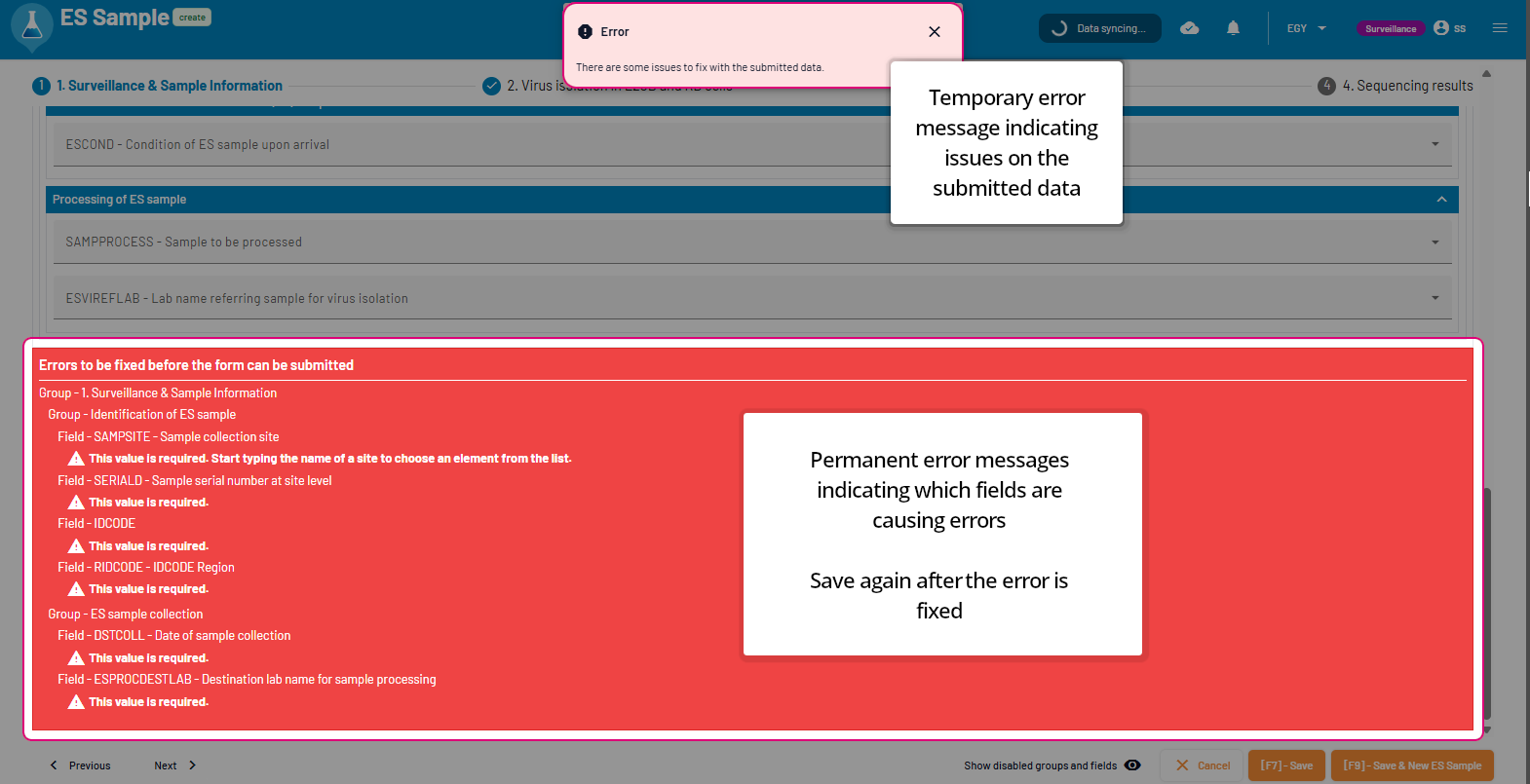
Error messages